Single Button Toggle
A single button toggle controls something that has two states, using just one action. Each press flips the state, and the button’s icon changes to show the current state - a "closed" icon when the state is closed, and an "open" icon when the state is open.
Unlike the Latching Toggle, which uses two interlocked actions, the button here is never disabled. It can always be pressed, and it always does the opposite of the current state.
In OliveTin, the state is stored in an entity file, which the action updates itself, and the icon is chosen with an image icon whose file name comes from the entity’s state.
The example on this page controls a garden water valve.
| Valve closed | Valve open |
|---|---|
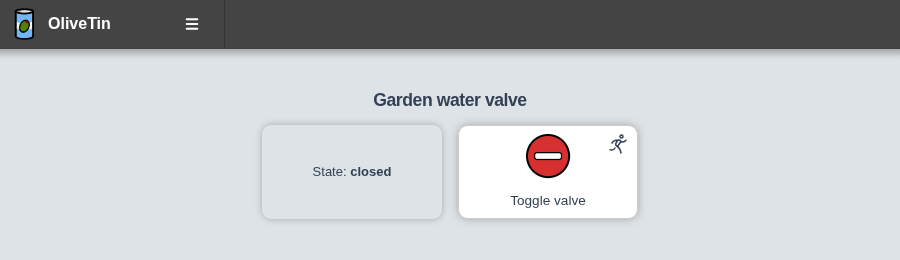
|
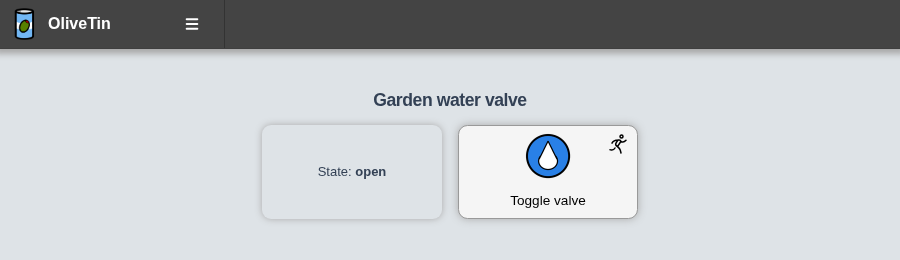
|
How it works
-
The entity file
/etc/OliveTin/entities/water_valve.yamlholds the state of the valve (openorclosed). It is the single source of truth for the dashboard. -
The Toggle valve action’s icon is an
<img>tag that uses{{ .CurrentEntity.state }}as the file name, so stateclosedshowsclosed.pngand stateopenshowsopen.png. -
The action has no
enabledExpression, so it is never disabled. -
When it runs, the action reads the current state, works out the opposite state, and writes that back to the entity file. OliveTin watches entity files, so the dashboard and the icon update as soon as the file changes.
Icons
Save the two icons into the custom-webui/icons/ directory next to your config.yaml, so that OliveTin serves them at /custom-webui/icons/closed.png and /custom-webui/icons/open.png. See Icons for more about serving your own icons.
closed.png |
open.png |
|---|---|

|

|
You can use any images you like, as long as each one is named after the state it represents.
Configuration
config.yamlentities:
- file: /etc/OliveTin/entities/water_valve.yaml
name: water_valve
actions:
- title: Toggle valve
icon: '<img src="/custom-webui/icons/{{ .CurrentEntity.state }}.png" width="48px" />'
entity: water_valve
shell: |
set -e
if [ "{{ .CurrentEntity.state }}" = "open" ]; then
next_state=closed
else
next_state=open
fi
echo "Setting {{ .CurrentEntity.title }} to $next_state"
printf -- '- title: %s\n state: %s\n' "{{ .CurrentEntity.title }}" "$next_state" > /etc/OliveTin/entities/water_valve.yaml
dashboards:
- title: Water Valve
contents:
- title: "{{ water_valve.title }}"
type: fieldset
entity: water_valve
contents:
- type: display
title: |
State: <strong>{{ water_valve.state }}</strong>
- title: Toggle valveCustomising this pattern
-
The same pattern works for anything with two states, such as lights, relays, services, or a maintenance mode. Add more icons if your entity has more than two states, and change the action to cycle through them.
-
Replace the
echocommand with your real hardware control, for example a GPIO command, an MQTT publish, or a call to a smart plug API. -
Only write the new state to the entity file once the hardware command has succeeded. If the command fails, the shell exits before the state changes and the dashboard keeps showing the real state.
-
If something else can change the device (a physical switch, a schedule), have a script update the entity file too. The icon will then follow it.
-
The icon path starts with
/, so it works from any dashboard. If OliveTin is served under a sub-path behind a reverse proxy, include that sub-path in the icon’ssrc. -
This action rewrites the whole entity file, so to control several valves, give each one its own entity file (or update the file in place with a tool such as
yq). -
Add ACLs if only certain users should be able to operate the valve.