Dashboards
OliveTin generates a default view of actions which is useful for simple OliveTin use cases - this is always called "Actions" and cannot be renamed. The Actions view also does not support entities, fieldsets or folders.
If you want to start organizing OliveTin actions more effectively, then Dashboards are for you!
One of the biggest reasons to use Dashboards as opposed to just the "Actions" section, is that dashboards allow you to use Folders, and dashboards really start to get exciting when you start using entities and displays.
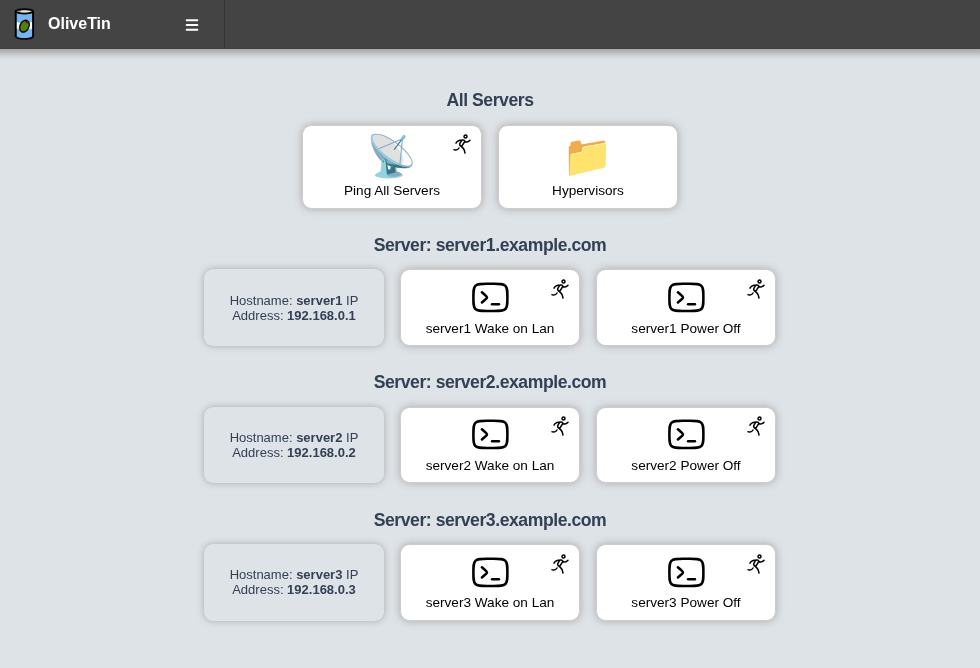
Dashboards pull actions from the default view
Dashboards are a way of pulling actions from the default "actions" view, and organizing them into groups - either into folders, or fieldsets. Because dashboards literally do "pull" actions from the default view, you cannot use an action in multiple dashboards - and every action must have a unique title.
Example configuration
config.yaml# Actions MUST be defined in the actions section, not in the dashboards
# section. The dashboards only "link" to actions by their title.
actions:
- title: Ping All Servers
shell: echo "ping all..."
- title: '{{ server.name }} Wake on Lan'
shell: 'wol {{ server.name }}'
timeout: 10
entity: server
- title: '{{ server.name }} Power Off'
shell: 'ssh root@{{ server.name }} "poweroff"'
timeout: 10
entity: server
# Dashboards are a way of taking actions from the default "actions" view, and
# organizing them into groups - either into folders, or fieldsets.
#
# The only way to properly use entities, are to use them with a `fieldset` on
# a dashboard.
dashboards:
# Top level items are dashboards.
- title: My Servers
contents:
# On dashboards, all items need to be in a "fieldset". If you don't
# specify a fieldset, actions will be assigned to a fieldset with a title
# called "default".
- title: All Servers
type: fieldset
contents:
# The contents of a dashboard will try to look for an action with a
# matching title IF the `contents: ` property is empty.
- title: Ping All Servers
# If you create an item with some "contents:", OliveTin will show that as
# directory.
- title: Hypervisors
contents:
- title: Ping hypervisor1
- title: Ping hypervisor2
# If you specify `type: fieldset` and some `contents`, it will show your
# actions grouped together without a folder.
- type: fieldset
entity: server
title: 'Server: {{ server.hostname }}'
contents:
# By default OliveTin will look for an action with a matching title
# and put it on the dashboard.
#
# Fieldsets also support `type: display`, which can display arbitary
# text. This is useful for displaying things like a container's state.
- type: display
title: |
Hostname: <strong>{{ server.name }}</strong>
IP Address: <strong>{{ server.ip }}</strong>
# These are the actions (defined above) that we want on the dashboard.
- title: '{{ server.name }} Wake on Lan'
- title: '{{ server.name }} Power Off'Categorize dashboards in the sidebar
When you have several root dashboards, you can group them under collapsible category headings in the sidebar with an optional category field on each root dashboard:
config.yamldashboards:
- title: My Servers
category: Infrastructure
contents:
- title: Ping All Servers
- title: My Containers
category: Infrastructure
contents:
- title: Restart nginx
- title: Status Board
category: Monitoring
contents:
- title: Show uptime
- title: Misc Tools
contents:
- title: Hello WorldDashboards that share the same category value are grouped together. Category order follows the first time each category appears in the config among dashboards the user can see. Dashboards without a category appear above the category sections. Nested items under contents do not use category.
Categories are shown when sectionNavigationStyle is sidebar (the default). See Section Navigation Style.
What’s Next?
Now that you understand dashboards, explore these related features:
-
Learn about fieldsets - Group actions visually on dashboards
-
Organize with folders - Create folder structures for better organization
-
Add displays - Show information alongside actions
-
FAQ: Hyperlinks in displays - Clickable links in display components
-
Configure output views - Customize how action output is displayed
-
Use entities with dashboards - Dynamically generate actions from entity files
-
View dashboard examples - See complete dashboard configurations
-
Customize dashboard styling - Change the appearance of dashboard components