Access Control Lists
OliveTin uses Access Control Lists (ACLs) to implement it’s security model, which allows you to have fine-grained control over indivividual actions or groups of actions. This can be used to implement role based access control (RBAC), or other security models that you may need.
ACLs are built up of the following set of rules;
-
name- The name of the ACL. This is used to identify the ACL in the configuration file. -
matchUsergroups- A list of usergroups that this ACL applies to. This is used to match users that are in the specified usergroup. -
matchUserNames- A list of usernames that this ACL applies to. This is used to match users that are in the specified usergroup. -
permissions- A set of permissions which are used with actions. eg:view,exec,logs, etc.-
addToEveryAction- A boolean value that indicates if this ACL should be added to every action. This is useful if you want to apply the same ACL to all actions, without having to manually add it to each action.
-
-
policy- A policy is a set of rules that affect the whole of OliveTin.
ACLs and Policies (global)
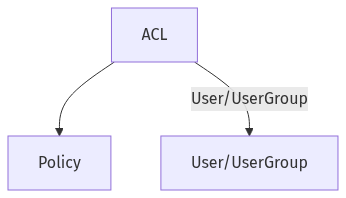
Policies are a set of rules that apply to the whole of OliveTin ("global"), and not just to individual actions (like permissions are).
The defaultPolicy is special, in that all values are set to true by default. This means that if you do not set a defaultPolicy, then all policies will be set to true by default. This is effectively what the defaultPolicy is set to;
defaultPolicy:
  showDiagnostics: true
  showLogList: true
You can override defaults using an ACL, like this;
accessControlLists:
  - name: admins
    matchUsergroups:
	  - admins
	policy:
	  showDiagnostics: true
	  showLogList: true

defaultPolicy:
  showDiagnostics: false
  showLogList: false
ACLs and Permissions (for Actions)
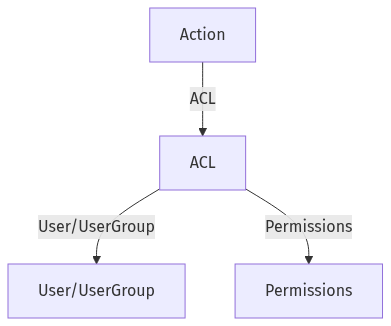
An action always starts with defaultPermissions (see below), and then then have one or more ACLs applied to it. This means that you can for example have an action that is only available to a certain group of users, or only to a single user.
Let’s say you have a user james and a usergroup admins. You can then create an ACL that only allows james and users in the admins group to view and execute an action.
You can specify default permissions for all actions by changing the defaultPermissions like this;
config.yamldefaultPermissions:
view: false
exec: false
logs: trueIn the example above, all users will start off with the permissions to only see action logs - but will not be able to view or execute actions.
It is then possible to add an "admins" ACL on top of every action. In the example below, we define one extra ACL called "admins", which matches any users with the usergroup also called "admins". This ACL will then be applied to all actions, and will allow users in the "admins" usergroup to view and execute the action.
config.yamldefaultPermissions:
view: false
exec: false
accessControlLists:
- name: admins
matchUsergroups:
- admins
permissions:
view: true
exec: true
actions:
- title: Shutdown Reactor
acls:
- adminsAdd an ACL to every action
Sometimes you want to define an ACL that applies to all actions. It can be tedious and error prone to manually add the ACL under the "acls" list for every action, if you have several actions. Instead, there is a shortcut to add an ACL to all actions - addToEveryAction: true.
config.yamlaccessControlLists:
- name: admins
matchUsergroups:
- admins
permissions:
view: true
exec: true
addToEveryAction: trueACLs and Dashboards
Root dashboards can also list acls. This controls whether the whole dashboard page is visible (including display widgets and entity fieldsets), not just action buttons.
-
If a dashboard has no
acls(or an empty list), it is unrestricted — anyone can see it in the side menu (subject to the usual “empty dashboard” hiding). -
If a dashboard lists one or more
acls, access uses the same allow-list rules as actions: a matching ACL that grantsview, otherwisedefaultPermissions.view. -
addToEveryActiondoes not apply to dashboards. List the ACL on the dashboard explicitly when you want to restrict it. -
Nested fieldsets and directories do not have their own
acls; the root dashboard decision covers the whole page.
Action acls still control individual buttons. Use dashboard acls when you need to hide a page that contains status or other non-action content from some users.
config.yamldefaultPermissions:
view: false
exec: false
accessControlLists:
- name: admins
matchUsergroups:
- admins
permissions:
view: true
exec: true
dashboards:
- title: Public tools
contents:
- title: Welcome
type: display
- title: Services
acls:
- admins
contents:
- title: 'Status: running'
type: displayIn the example above, guests can open Public tools, but Services is hidden from the side menu and cannot be loaded by deep link.
Action hidden: true is not part of the ACL model. It only controls dashboard listing. Restrict who can see or run actions with the permissions above; see Hidden actions.
|
ACLs and Entities
Entity types (entries under entities in configuration) can also list acls. This controls whether users may see that type in the Entities page, entity details, search hints, dashboard entity fieldsets, and entity-driven argument choices.
-
If an entity type has no
acls(or an empty list), it is unrestricted — same as root dashboards without ACLs. -
If an entity type lists one or more
acls, access uses the same allow-list rules as actions and dashboards: a matching ACL that grantsview, otherwisedefaultPermissions.view. -
Only view applies to entity types.
exec,logs, andkillremain action permissions. -
addToEveryActiondoes not apply to entities. List the ACL on the entity definition explicitly when you want to restrict it. -
Access is per entity type, not per instance. All instances of a restricted type are hidden together.
-
Entity types loaded at runtime without a matching
entities:entry stay unrestricted for ACL purposes, but Diagnostics reports a configuration warning. -
Arguments that expand choices from an entity type must define exactly one choice template. Combining
entitywith multiple static choices is invalid and rejected on startup.
Entity-related actions stay dual-gated:
-
Viewing the entity type requires entity
view. -
Seeing or running a related action still requires that action’s own ACLs (
view/exec). -
Search and dashboards do not show entity-bound actions for types the user cannot view, even if the action ACL alone would allow it.
config.yamldefaultPermissions:
view: false
exec: false
accessControlLists:
- name: ops
matchUsergroups:
- ops
permissions:
view: true
exec: true
entities:
- name: printers
file: entities/printers.yaml
- name: servers
file: entities/servers.yaml
acls:
- ops
actions:
- title: Restart {{ name }}
entity: servers
shell: echo restart
acls:
- opsIn the example above, guests can see printers (unrestricted) but not servers. Users in the ops group can see servers and the Restart actions bound to them.
ACL Matching - usernames and usergroups.
You can match users based on their usergroup which is the most common, but it is also possible to match based on the user’s username.
config.yamlaccessControlLists:
- name: admins
matchUsergroups:
- admins
permissions:
view: true
exec: true
- name: james
matchUserNames:
- james
permissions:
view: true
exec: trueWhat’s Next?
Now that you understand ACLs, here’s how to implement them:
-
View security examples - See complete ACL configurations
-
Example: Login required - Configure login requirements
-
Example: Admin-only actions - Restrict actions to admins
-
Set up local users - Create users for ACL matching
-
Configure OAuth2 - Set up OAuth2 for user groups
-
Security design recommendations - Learn best practices for ACL design