Logs
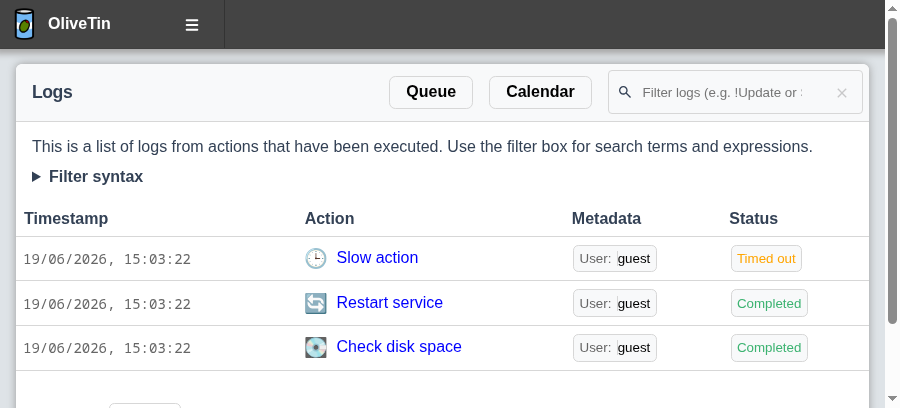
OliveTin records an entry every time an action runs. The Logs pages in the web interface let you browse that history, open individual executions, and filter or search past runs.
Each log entry includes:
-
When the action started (and finished, if applicable)
-
The action title and icon
-
Who triggered it
-
Status (for example, completed, timed out, or still running)
-
A link to the full execution output
Logs in the web interface
Use the Logs link in the navigation to open the list view. From there you can:
-
Search and filter executions
-
Open the calendar view to browse by date
-
Open the queue view when executions are waiting for a concurrency slot
-
Click an action title to see full output, timing, and exit status
Application logs vs action logs
OliveTin has two different kinds of logging:
-
Action logs — history of commands you run through OliveTin (this section)
-
Application logs — diagnostic output from the OliveTin service itself (see Logging - Application)
What’s next?
-
Action logs — permissions and visibility for the log viewer
-
Calendar view — browse executions on a calendar
-
Queue view — see executions waiting for a concurrency slot
-
Saving logs — persist logs to disk across restarts
-
Timeouts — timed-out actions appear in the logs with a Timed out status