Home Assistant (REST)
| The recommended way to integrate HomeAssistant and OliveTin is via the HACS integration. |
Home Assistant is able to call REST API endpoints, making integration with OliveTin possible without any custom plugins or integrations in Home Assistant. This does require modifying your Home Assistant configuration.yml file though.
Give you actions an ID
First, you need to give your actions an ID. This is done by adding an id field to your action. This ID will be used by Home Assistant to call the correct action. Here is an example of an action with an ID:
actions:
  - id: "server_sleep"
    title: "Server Sleep"
    icon: ping
    shell: ssh user@server "sudo systemctl suspend"
You then need to know the URL to call to trigger this action. This is the OliveTin API URL plus the method name, and the action ID is sent in a JSON body. For example, if your OliveTin is running at http://yourserver:1337, you would POST {"actionId": "server_sleep"} to http://yourserver:1337/api/StartActionByGetAndWait.
You can learn more about starting actions via the OliveTin API by reading the link Starting Actions via the API page, but the method "StartActionByGetAndWait" is the one you will want to use for Home Assistant.
Add the REST API call to Home Assistant
Now that you have the URL to call to trigger your action, you can add this to your Home Assistant configuration. This is done by adding a rest_command to your configuration.yml file.
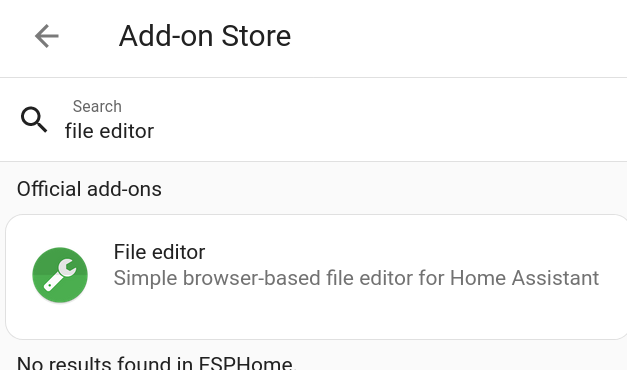
That page assumes you will use the Home Assistant File Editor addon to edit your configuration.yaml. Install it from the Home Assistant addon store if you have not done so already;
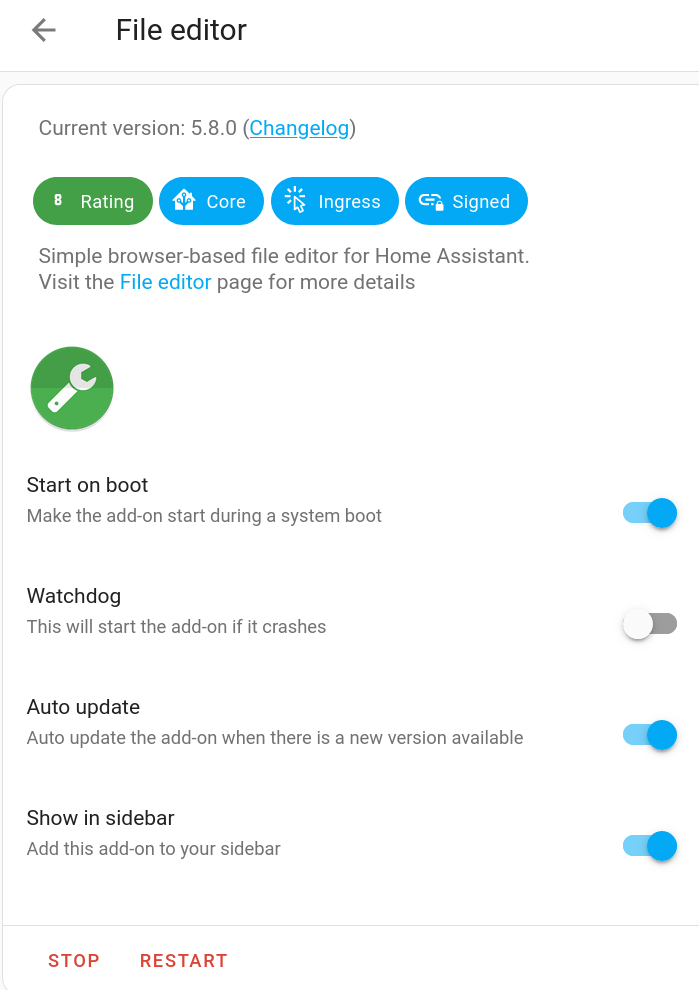
The addon is started and added to the sidebar;
Here is an example of a rest_command that calls the action above:
From the file editor now in your sidebar, browse the filesystem to the configuration.yaml file and add the following to the file:
rest_command:
  olivetin_sleep_mindstorm:
    url: http://olivetin.example.com:1337/api/StartActionByGetAndWait
    method: post
    content_type: "application/json"
    payload: '{"actionId": "server_sleep"}'
You save the file, and restart Home Assistant to pick up the changes.
Add a button to your HASS Dashboard
Now that you have a rest_command set up to call your action, you can add a button to your Home Assistant dashboard to trigger the action. This is done by adding a button to your dashboard configuration.
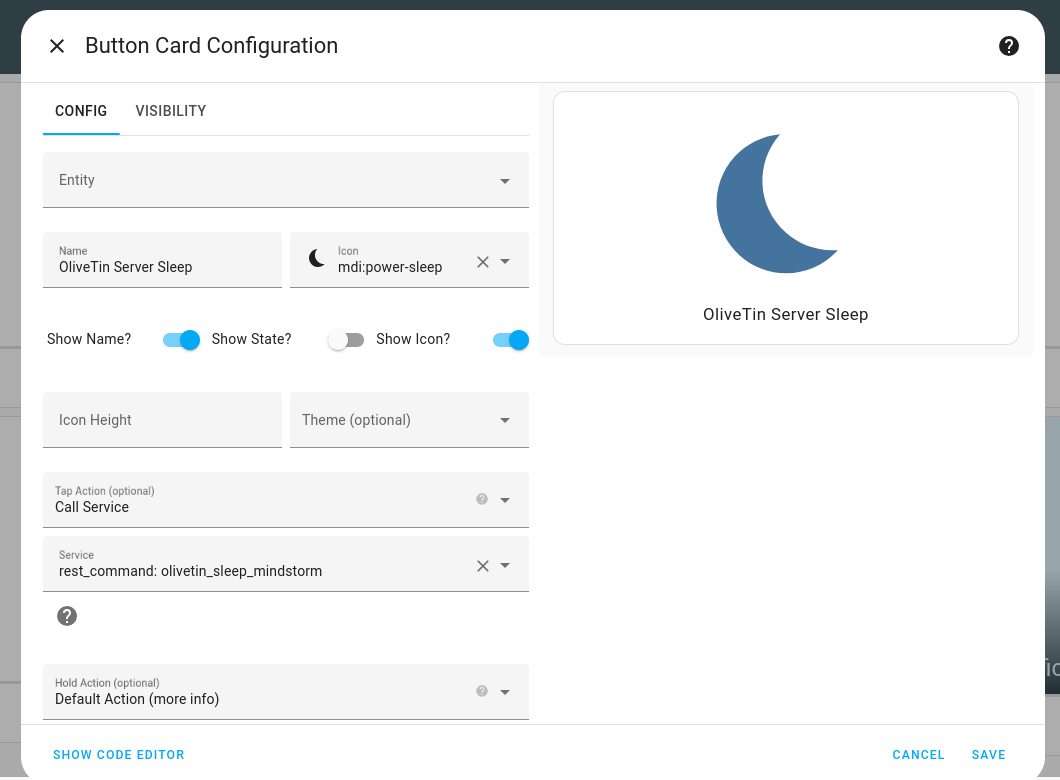
Set the "Tap Action" to "Call Service" and select the rest_command you created earlier. You can also set the icon and name of the button to whatever you like.
Good luck!